By 2025, over 4.8 billion people will use digital wallets globally, making them more popular than credit cards. If you still pull out your physical wallet every time you shop, you’re missing out on something that could make your life easier. This guide will show you exactly how to use digital wallet apps, even if you’ve never tried them before. You’ll learn how to set up your wallet, make payments, and keep your money safe. Best of all, you can start using it today without any special skills or equipment beyond your smartphone.
What Is a Digital Wallet and Why Should You Care
A digital wallet is an app on your phone that stores your credit cards, debit cards, and sometimes even cash. Think of it as your regular wallet, but it lives inside your smartphone instead of your pocket. You can use it to pay at stores, send money to friends, or shop online without ever touching a physical card. The Federal Trade Commission provides detailed information about mobile payment safety and consumer rights when using digital wallets.
People switch to digital wallets for three main reasons. First, it’s faster than digging through your purse or wallet for the right card. Second, it’s actually safer than carrying plastic cards around because your real card number stays hidden. Third, you always have it with you as long as you have your phone.
The average person saves about 15 seconds per transaction using a digital wallet instead of cards or cash. That might not sound like much, but it adds up when you’re buying coffee every morning or grabbing lunch. Plus, you’ll never again have that moment at checkout when you realize you left your wallet at home.
The Different Types of Digital Wallets You Can Use
Not all digital wallets work the same way. Closed wallets are apps that only work at specific stores, like the Starbucks app or the Target app. You load money into them, but you can only spend it at that one company. These are great if you shop at the same place often and want to earn rewards.
Semi-closed wallets let you shop at many different stores, but not everywhere. They work with a list of partnered merchants who have agreements with the wallet company. Most popular payment apps fall into this category because they work at millions of locations but not absolutely everywhere.
Open wallets are connected directly to your bank account and work almost anywhere that accepts card payments. Apple Pay, Google Pay, and Samsung Pay are examples of open wallets. These give you the most freedom because they’re accepted at most stores with modern card readers.
For most people, an open wallet makes the most sense as your main payment method. You can always add closed wallets for your favorite stores as extras.
Choosing the Right Digital Wallet for Your Needs
Apple Pay works exclusively on iPhones, iPads, and Apple Watches. It’s super simple to use and works at millions of stores worldwide. If you own Apple products, this is usually your best choice because it’s already built into your device. Consumer Reports regularly tests and compares digital wallet services to help you make informed decisions about which one fits your lifestyle best.
Google Pay is the Android version that comes pre-installed on most Android phones. It works similarly to Apple Pay and is accepted at the same places. The app also lets you store loyalty cards and gift cards, which is handy.
Samsung Pay has a special feature that works with older card readers that don’t normally accept phone payments. If you have a Samsung phone and shop at older stores, this might be your best option. However, Samsung is phasing this out in favor of Google Pay on newer devices.
PayPal is different because it’s mainly for online shopping and sending money to people. You can also use it in stores at some places, but it’s not as widely accepted as the others for in-person shopping.
Venmo and Cash App are perfect for splitting bills with friends or paying people back. They’re social payment apps that make person-to-person transfers easy, but they’re not ideal for everyday store purchases.
Your choice depends on what phone you have and how you plan to use your wallet. iPhone users should start with Apple Pay. Android users should try Google Pay. If you mainly need to pay friends back, grab Venmo or Cash App.
How to Set Up Your Digital Wallet Step by Step
First, make sure your phone is less than five years old and running a recent operating system. Older phones might not support digital wallet features. Check your phone’s settings to see if NFC (near field communication) is available, since that’s what makes contactless payments work.
Download your chosen wallet app from the official app store. Never download payment apps from websites or third-party stores because they could be fake and steal your information. The app is free, so if someone’s charging you, it’s a scam.
Open the app and create your account using your email address. Pick a strong password that you don’t use anywhere else. Mix letters, numbers, and symbols to make it harder to guess. Write it down somewhere safe at home if you’re worried about forgetting it.
The app will ask you to verify your identity, usually by sending a code to your email or phone number. Enter that code when it arrives. Then set up your security features like a PIN, fingerprint scan, or face recognition. These keep other people from using your wallet if they get hold of your phone.
Grant the app permission to access your camera (for scanning cards) and location (for finding nearby places that accept payments). Some people worry about privacy here, but these permissions are necessary for the wallet to work properly.
If the app crashes during setup or won’t open, restart your phone and try again. Make sure you have a good internet connection because the setup process needs to communicate with your bank.
Adding Your Credit and Debit Cards to Your Digital Wallet
Open your wallet app and look for a button that says “Add Card” or shows a plus sign. Tap it to start the process. You’ll see two options: scan your card with your camera or type in the details manually.
Scanning is faster and reduces mistakes. Hold your card flat against a plain background and let the camera read the number. The app will capture your card number, expiration date, and sometimes your name automatically.
If scanning doesn’t work or you prefer typing, enter your card number, expiration date, and the security code from the back of your card. Double check everything before moving on because one wrong digit will cause problems later.
Next, your bank needs to verify that you actually own this card. Most banks will send a text message or email with a verification code. Enter that code in the app when it arrives. Some banks might call you instead or ask you to verify through their own banking app.
After verification, your card appears in your wallet and is ready to use. You can add multiple cards and set one as your default for payments. Your default card is the one that gets charged unless you choose a different card at checkout.
Most wallets let you add between 8 and 12 cards. If verification fails, call your bank directly because they might have digital wallet features turned off by default for security reasons.
Making Your First Payment With a Digital Wallet
Look for the contactless payment symbol at the store checkout. It looks like a sideways WiFi symbol or a hand holding a card. If you see that symbol, the store accepts digital wallet payments.
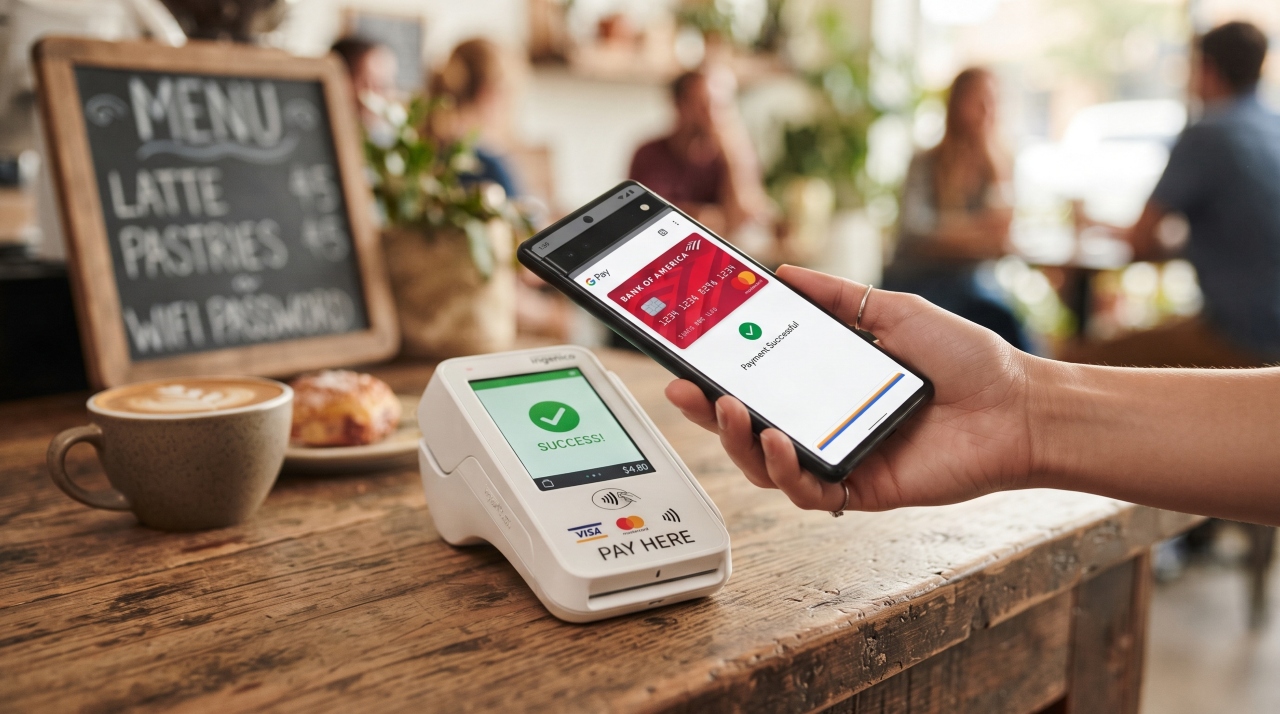
Wake up your phone but you don’t usually need to open the wallet app. Just hold your phone near the card reader, about an inch away. The exact spot is usually on the back of your phone near the top.
Your phone will ask you to authenticate by using your fingerprint, face scan, or PIN. Do that quickly while holding the phone near the reader. You’ll feel a vibration or hear a beep when the payment goes through.
The screen will show a checkmark and the amount charged. The whole process takes about three seconds once you get used to it. You can ask for a receipt just like with a regular card purchase.
If the payment doesn’t work, move your phone slightly closer or try a different angle. Make sure your phone’s battery isn’t completely dead because most wallets need at least a little power to work. Also check that you’re using the right payment terminal because some stores have separate readers for different payment types.
Paying Online Using Your Digital Wallet
When shopping on a website, look for digital wallet buttons at checkout. You’ll see icons for Apple Pay, Google Pay, or PayPal next to the regular credit card payment option. These buttons usually appear on the payment page.
Click your wallet’s icon instead of entering your card details manually. A popup will appear on your phone asking you to confirm the payment. Review the store name, amount, and which card will be charged.
Authenticate the payment using your fingerprint or face scan. The website receives confirmation and completes your order without you ever typing in card numbers, addresses, or security codes. All that information transfers automatically from your wallet.
You’ll get an email receipt from the store and a notification in your wallet app showing the transaction. This happens within seconds of confirming payment. If something goes wrong, you’ll see an error message telling you to try again or use a different payment method.
Online payments through digital wallets are faster than typing everything out and safer because the website never sees your actual card number. This protects you if the website gets hacked later.
Sending Money to Friends and Family
PayPal, Venmo, and Cash App are the best wallets for sending money to other people. Apple Pay and Google Pay also have this feature, but fewer people use it. To send money, both you and your friend need accounts with the same service.
Add your friend as a contact by searching for their phone number, email, or username. Most apps let you import contacts from your phone to make this easier. Select the person you want to pay from your contact list.
Enter the amount you want to send and add a note explaining what it’s for, like “dinner last night” or “rent money.” This helps both of you remember what the payment was about later. Review the details carefully because sent money can be hard to get back.
Confirm the payment with your fingerprint or PIN. The money usually arrives in your friend’s account instantly, but it can take one to three business days to transfer from there to their bank account. Some services charge a small fee for instant transfers to bank accounts but regular transfers are free.
Never send money to people you don’t know personally because payment apps don’t protect you from scams the way credit cards do. If someone tricks you into sending money, you probably won’t get it back.
Using Digital Wallets for Public Transportation
Many cities now let you tap your phone to pay for buses, trains, and subways. New York, London, Chicago, and dozens of other cities accept digital wallet payments on public transit. Check your local transit website to see if they support it.
Some cities require you to add a special transit card to your wallet first. Open your wallet app and look for a transit card option. Follow the instructions to link your account or create a new transit pass.
At the station or on the bus, tap your phone on the card reader just like you would for a store purchase. You don’t need to open any apps first. Just wake your phone and tap. The fare gets deducted automatically.
Your wallet app shows your transit balance and recent trips. Some systems let you set up automatic reloading so you never run out of fare money. This beats carrying a separate transit card that you might lose or forget.
The biggest benefit is speed. You can board faster than people fumbling with cash or looking for their transit cards. During rush hour, those seconds matter.
Storing Loyalty Cards and Coupons in Your Wallet
Most digital wallets let you add store loyalty cards so you don’t have to carry plastic cards anymore. Look for an option to add passes, tickets, or loyalty cards in your wallet app. You can usually scan the barcode from your physical card.
The app stores the barcode digitally. When you shop at that store, open your wallet and show the digital barcode to the cashier just like you would show a physical card. They scan it the same way.
Some stores send digital coupons directly to your wallet app. Others let you screenshot coupons from their website and save them to your phone. Having everything in one place means you won’t forget to use coupons or miss out on loyalty points.
You can organize cards by how often you use them. Put your most frequent stores at the top for easy access. Delete cards you never use to keep your wallet from getting cluttered.
Digital loyalty cards work exactly like physical ones but you can’t lose them unless you lose your entire phone. Even then, they’re backed up to your account so you can restore them.
Managing Your Digital Wallet Like a Pro
Check your transaction history at least once a week. This helps you catch any charges you don’t recognize early, before they become bigger problems. Your wallet app shows every payment you’ve made, when you made it, and where.
Set up spending notifications so your phone alerts you every time your wallet gets used. If you get a notification for a purchase you didn’t make, you’ll know immediately that something is wrong. You can set different alert levels, like only for purchases over a certain amount.
Organize your cards by putting the ones you use most at the top of your list. This makes checkout faster because your preferred card is already selected. You can usually drag and drop cards to reorder them.
Remove expired cards and cards you’ve cancelled. Keeping old cards in your wallet creates confusion and clutter. When you get a new card with a new expiration date, add it and delete the old one.
If you use multiple wallets for different purposes, check them all regularly. You might have Apple Pay for stores, Venmo for friends, and PayPal for online shopping. Each one needs attention and review.
Keeping Your Digital Wallet Safe and Secure
Digital wallets are actually safer than physical cards because they use something called tokenization. This means the merchant never sees your real card number. Instead, they get a one time code that only works for that specific purchase.
If someone steals your physical card, they can use it anywhere until you cancel it. If someone somehow intercepts your digital wallet payment, they get a useless code that won’t work for any other purchase. This is why security experts recommend digital wallets over regular cards.
Set a strong password for your wallet app and change it every few months. Use a different password than your email or bank accounts. Enable two factor authentication if your wallet app offers it. This requires a second form of verification beyond just your password.
Never tell anyone your wallet PIN or password, even if they claim to be from your bank or the wallet company. Real companies never ask for this information. If your phone gets stolen, immediately log into your wallet account from a computer and remove all cards.
Keep your phone’s operating system updated because updates often include security fixes. An outdated phone is easier for hackers to break into. Most phones will update automatically if you let them.
Report your phone as lost or stolen to your phone company right away. Both Apple and Google let you remotely lock or erase your phone from their websites. This prevents thieves from accessing your wallet even if they have your phone.
Watch your bank statements for charges you don’t recognize. Even though digital wallets are secure, your actual bank account or credit card could get compromised separately. Catching fraud early makes it easier to fix.
Common Problems When Using Digital Wallets and How to Fix Them
When a store payment gets declined, first check that you have an internet connection. Digital wallets need to communicate with your bank, even for in-store payments. Try turning airplane mode off if it somehow got turned on.
Make sure the card in your wallet isn’t expired and has enough money or available credit. Your digital wallet can’t override a maxed out credit card or empty checking account. Switch to a different card in your wallet if one isn’t working.
If your card won’t add to your wallet at all, call your bank and ask them to enable digital wallet features. Some banks have this turned off by default and need to activate it for you. This usually takes just a few minutes on the phone.
Apps that keep crashing need to be updated or reinstalled. Check your app store for updates first. If that doesn’t work, delete the app and download it again. Your cards and information are stored in the cloud, so you won’t lose anything.
Fingerprint sensors that stop recognizing your finger need to be re-registered. Go into your phone settings and delete your old fingerprint, then add it again. Make sure your finger is clean and dry when registering it.
Transactions that don’t show up right away are usually just delayed. Wait an hour and check again. The confirmation email might be in your spam folder. If it’s still missing after 24 hours, contact the merchant and your bank.
Dead phone batteries mean you can’t pay with your wallet. Some people carry one backup card for emergencies. Others use a portable phone charger to avoid this problem. A few wallet apps let you generate a one time card number before your phone dies, but this isn’t common.
Digital Wallet Fees You Should Know About
Most basic digital wallet services are completely free. Apple Pay, Google Pay, and Samsung Pay don’t charge you anything to add cards or make payments. The stores you shop at also don’t pay extra to accept wallet payments compared to regular cards.
Payment apps like Venmo and Cash App are free for standard transfers from your bank account. However, they charge around 3% if you use a credit card to send money because they treat it like a cash advance. Use your bank account or debit card instead to avoid this fee.
Instant transfers to your bank account usually cost between 25 cents and 1.5% of the transfer amount. Standard transfers that take a few days are free. Only pay for instant transfers when you really need the money right away.
Using your digital wallet in another country might trigger international transaction fees, but these come from your bank or credit card company, not the wallet app. They’re the same fees you’d pay using a physical card abroad.
Some wallet apps that let you withdraw cash at ATMs charge fees just like regular ATM withdrawals. These can be $2 to $3 per transaction. Check your specific app’s fee schedule because they vary widely.
You can avoid almost all wallet fees by using debit cards instead of credit cards for transfers, choosing standard delivery instead of instant, and being aware of your bank’s foreign transaction fees.
What Merchants and Stores Accept Digital Wallets
Major retailers like Walmart, Target, Best Buy, and Home Depot all accept digital wallet payments. Most grocery stores, including Whole Foods, Trader Joe’s, and Kroger, have contactless readers. Fast food chains like McDonald’s, Starbucks, and Subway are fully set up for phone payments.
Small businesses are catching up quickly. More than 70% of small retailers now have contactless payment terminals because the equipment got cheaper. Coffee shops, local restaurants, and independent stores increasingly accept digital wallets.
Online stores including Amazon, eBay, and most major websites offer digital wallet checkout options. This number grows every month because online merchants know that easy checkout means more completed purchases.
Gas stations are adding contactless readers at the pump, letting you pay without going inside or touching the payment terminal. Convenience stores inside gas stations also typically accept wallet payments.
Before shopping somewhere new, look for contactless payment symbols on the door or at the register. You can also ask the cashier if they accept Apple Pay or Google Pay. Most modern card readers from the past three years support digital wallets even if there’s no symbol.
Digital Wallets Versus Traditional Payment Methods
Digital wallets are faster at checkout by about 15 seconds compared to swiping or inserting a card. You don’t have to pull anything out of your pocket except your phone, which you probably already have in your hand.
Security strongly favors digital wallets because of tokenization and biometric authentication. Someone can’t skim your card number at a shady ATM or gas pump if you’re using your phone. Your actual card details never leave your device.
Rewards and cashback work the same way with digital wallets because you’re still using your credit or debit card. The card earns points just like it would for physical purchases. Some credit cards even offer extra rewards for using their card through a digital wallet.
Privacy is slightly better with digital wallets because merchants get less of your information. They see that a payment went through but get fewer details about you personally. However, the wallet company itself knows what you’re buying.
Cash still makes sense for small purchases at places that don’t accept cards, like farmer’s markets or street vendors. Physical cards work better as a backup when your phone battery dies. But for everyday shopping, digital wallets win on almost every measure.
The environmental impact is smaller because you’re not getting plastic cards mailed to you every few years. Digital statements and receipts also mean less paper waste.
Advanced Features Most People Don’t Know About
Many wallet apps let you split bills with a group of friends. You can divide a restaurant check evenly or assign specific amounts to each person. Everyone gets a payment request and can pay their share with one tap.
Recurring payments can be set up through some wallets for things like monthly subscriptions or regular donations. The wallet automatically sends the payment on schedule without you remembering to do it.
Virtual card numbers are a security feature where your wallet creates a temporary card number for online shopping. You can use it once and then it expires, so if that website gets hacked, your real card stays safe. This feature is becoming more common.
Budget tracking tools in some wallet apps categorize your spending automatically. You can see how much you spent on restaurants, groceries, or gas this month. This helps you understand your spending habits without extra work.
Integration with other financial apps means your wallet can connect to budgeting software or tax preparation tools. Your transactions flow automatically to these other programs, saving you from manual data entry.
Cryptocurrency features are appearing in more wallets, letting you buy, store, and spend digital currencies. This is still new and complicated, so only explore it if you understand how cryptocurrency works.
Teaching Kids and Teens to Use Digital Wallets Safely
Some wallet apps offer family accounts for kids as young as 13, with parental controls built in. Parents can see every transaction and set spending limits. This teaches money management in the digital format kids will use as adults.
Set weekly or monthly spending caps so teens learn to budget their allowance or job earnings. When they hit their limit, the wallet stops working until the next period starts. This is safer than handing them a credit card with no limits.
Review transactions together regularly to talk about spending choices. Ask questions about purchases instead of judging. This creates teaching moments about wants versus needs and smart shopping.
Teach them never to send money to strangers or people they only know online. Explain common scams that target young people, like fake prizes or requests from “friends” whose accounts got hacked.
Privacy settings matter especially for young users. Turn off social features in payment apps so their transactions aren’t visible to others. Explain why they shouldn’t share screenshots of their wallet balance or transactions on social media.
Using digital wallets for allowance is easier than handing over cash every week. You can send money instantly from your phone to theirs, and both of you can track it.
The Future of Digital Wallets and What’s Coming Next
Biometric authentication is getting more sophisticated with better fingerprint sensors and face recognition that works in more lighting conditions. Some companies are testing palm scanning and even heartbeat recognition for extra security.
Wearable devices like smartwatches and rings are becoming payment tools. You can pay with a tap of your watch without pulling out your phone. Fitness trackers are adding payment features too.
Cryptocurrency integration is expanding as digital currencies become more mainstream. More wallets will support buying coffee with Bitcoin or other crypto, though this remains controversial and complicated.
Government ID storage is being tested in several states, where your driver’s license lives in your digital wallet. TSA is running pilots where you can show your ID on your phone at airport security. This could expand to other forms of identification.
Health records and vaccination cards are moving into digital wallets for easy access at doctor visits or when traveling. Your wallet could hold your insurance card, prescription information, and medical history.
Cross border payments are getting easier and cheaper through digital wallets. Sending money internationally costs less and arrives faster than traditional wire transfers. This helps families supporting relatives in other countries.
Staying updated with these changes means occasionally checking for app updates and reading about new features. You don’t need to use everything, but knowing what’s available helps you decide what works for you.
Conclusion
Learning how to use digital wallet apps is easier than most people think. You can set up your first wallet in about 10 minutes and start using it immediately. The benefits of faster checkout, better security, and always having your payment method with you make it worth the small effort to get started.
Your card information stays safer in a digital wallet than in your physical wallet because stores never see your real card number. Losing your phone is less risky than losing your wallet because you can lock or wipe your phone remotely.
Start small by adding just one card to a wallet app and using it for your morning coffee. Once you see how easy it is, you’ll find yourself using it more often. Remember to set up security features like fingerprint scanning and check your transactions regularly.
The world is moving toward digital payments whether we like it or not. Getting comfortable with digital wallets now means you won’t feel left behind as more places stop accepting cash or even physical cards. You’re not just keeping up with technology, you’re making your daily life simpler.
Take Your First Step Today
Download a digital wallet app on your phone right now. If you have an iPhone, try Apple Pay. Android users should start with Google Pay. The apps are free and already installed on most phones.
Add your most used credit or debit card following the steps in this guide. Make your first purchase somewhere easy like a coffee shop or grocery store where you know they accept digital payments.
Share this guide with a family member or friend who’s been hesitant about digital wallets. Teaching someone else helps you remember what you learned and gives them the confidence to try it.
Leave a comment below if you have questions about specific wallet apps or run into problems during setup. Other readers often have solutions to common issues, and your question might help someone else too.